











Windows 11 Fake Update
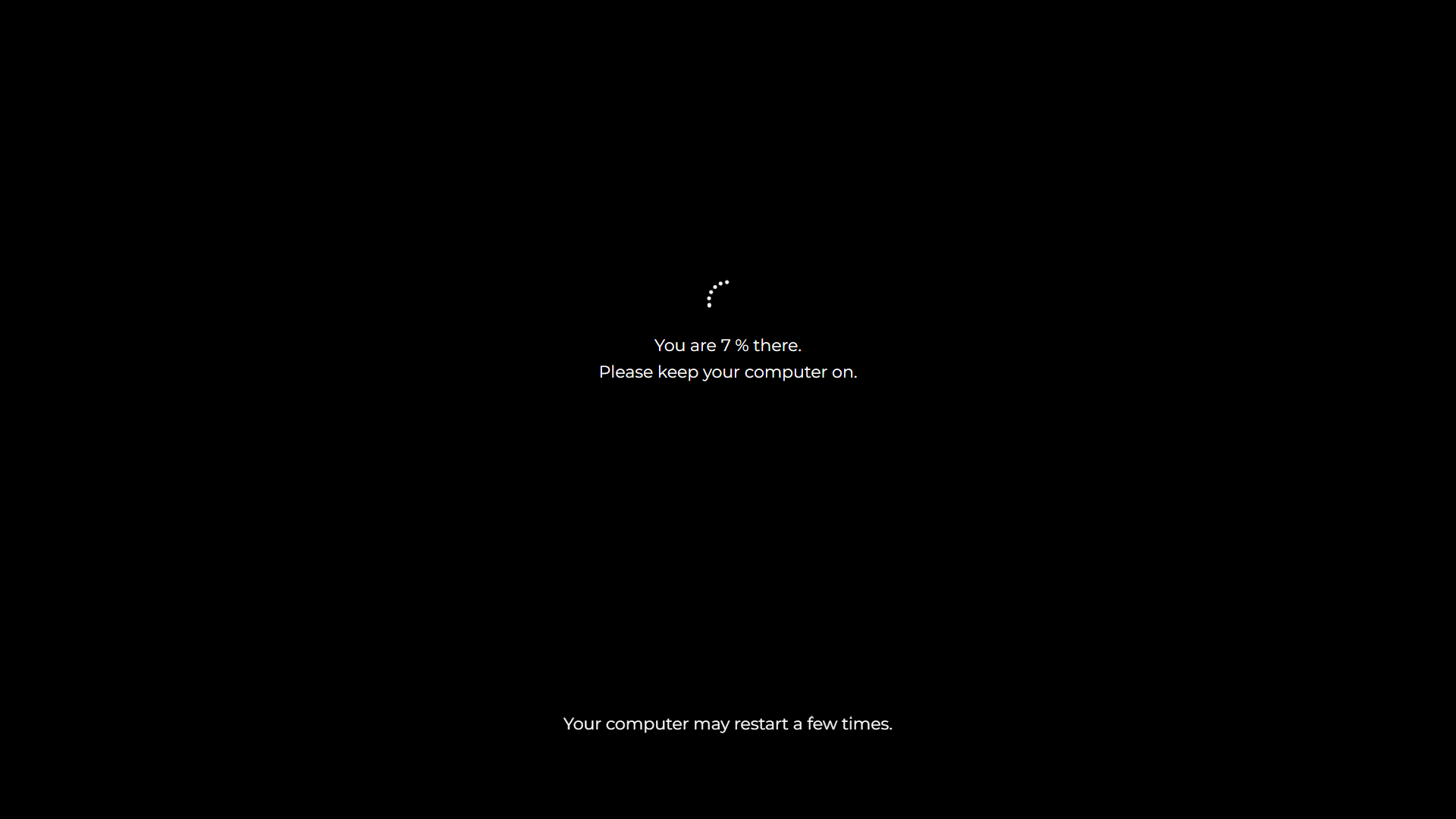
Please keep your computer on.
.webp "macOS")
Screensaver Screens

Prank Screens


Color Screens
Wallpaper Screens



Video Screens



This is a free Windows 11 update simulation that reproduces the real thing: the black background, the spinning ring of dots, the climbing percentage and the calm modern text telling you to keep your PC on. Press F11 for fullscreen and the prank begins. Nothing installs, nothing changes, and Esc ends it instantly.
Like our other update screens, you control the pacing: set the update time in minutes and choose the start time percentage so the update appears to have been running long before anyone walked in.
Windows 11 or Windows 10? Match the Screen or Get Caught
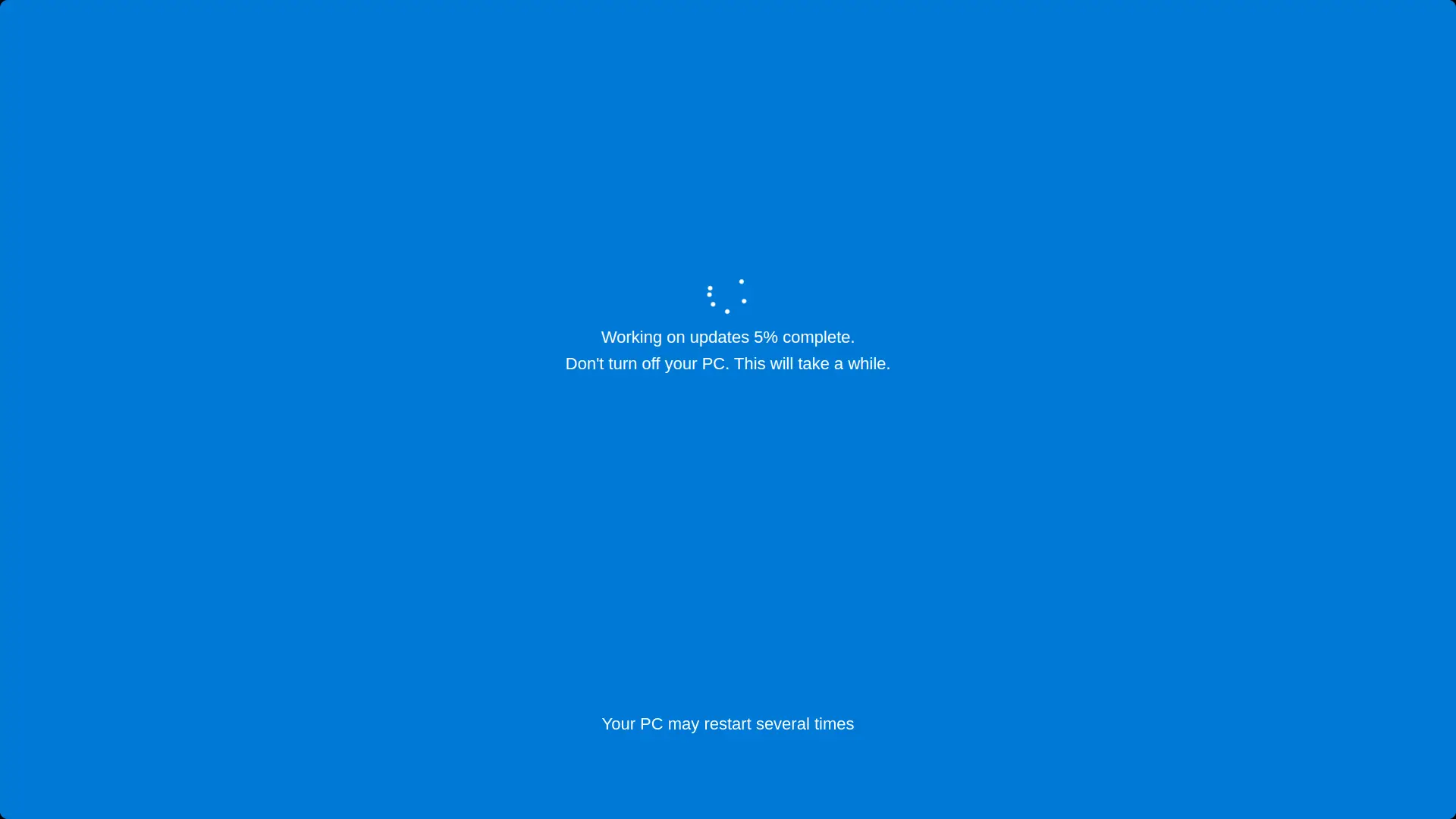
Here is the detail most pranksters miss. Windows 10 updates run on a blue screen. Windows 11 updates run on a black one. The wording and typography differ too, since Windows 11 uses its softer, centered design language. Anyone who has sat through updates on their own machine knows, at gut level, what their update screen looks like.
So check the taskbar before you strike. Centered icons and rounded corners mean Windows 11, and this is your page. Left aligned icons mean Windows 10, and you want the fake Windows 10 update screen instead. Picking the wrong one is how good pranks die in the first five seconds.
How to Start the Fake Windows 11 Update
- Set the update time. Choose how many minutes the simulation runs from start to finish.
- Set the start percentage. Begin mid way, at numbers like 23% or 41%, so the update looks like it has already been grinding for a while.
- Press F11. The browser vanishes and the screen becomes a full Windows 11 update. Park the mouse in a corner, walk away, and press Esc later to end it without a trace.
Picking a Believable Duration for Windows 11
Windows 11 changed update behavior, and your settings should reflect that. Microsoft reworked the update pipeline so that monthly updates download smaller packages and finish faster than the Windows 10 era, especially on the SSDs that almost all Windows 11 machines run. A modern laptop owner expects minutes, not hours.
The believable ranges:
- 5 to 15 minutes for a routine monthly update on a typical Windows 11 laptop. This is the safest setting for most victims.
- 20 to 40 minutes if you are selling a big annual feature update. Plausible, and long enough to ruin a lunch break.
- Start at 97% for the connoisseur option. The final few percent are still famous for taking forever, even on Windows 11.
The percentage counter paces itself to your chosen duration and stalls on numbers the way real updates do, rather than gliding up smoothly like a cartoon.
Making It Flawless
- Hide the cursor in a screen corner after going fullscreen. The arrow is always the giveaway.
- Check the machine really runs Windows 11, as covered above. Black screen on a Windows 10 PC raises eyebrows.
- Disable display sleep if the victim will be away long, so the illusion does not blink out.
- Sell it verbally. One offhand "I think your PC started an update" as they sit down does more than any pixel.
Is It Safe?
Yes, completely safe. This is a browser animation with no access to Windows Update, system files or the power switch. It cannot restart, modify or harm the computer, and it runs identically on a Mac or a phone, which is itself the proof that it is only a web page. Press Esc and it is gone.
Keep it kind: a coffee break prank is comedy, sabotaging someone's real deadline is not. The goal is two people laughing at the end.
More Screens for the Collection
- The blue era victim needs the fake Windows 10 update.
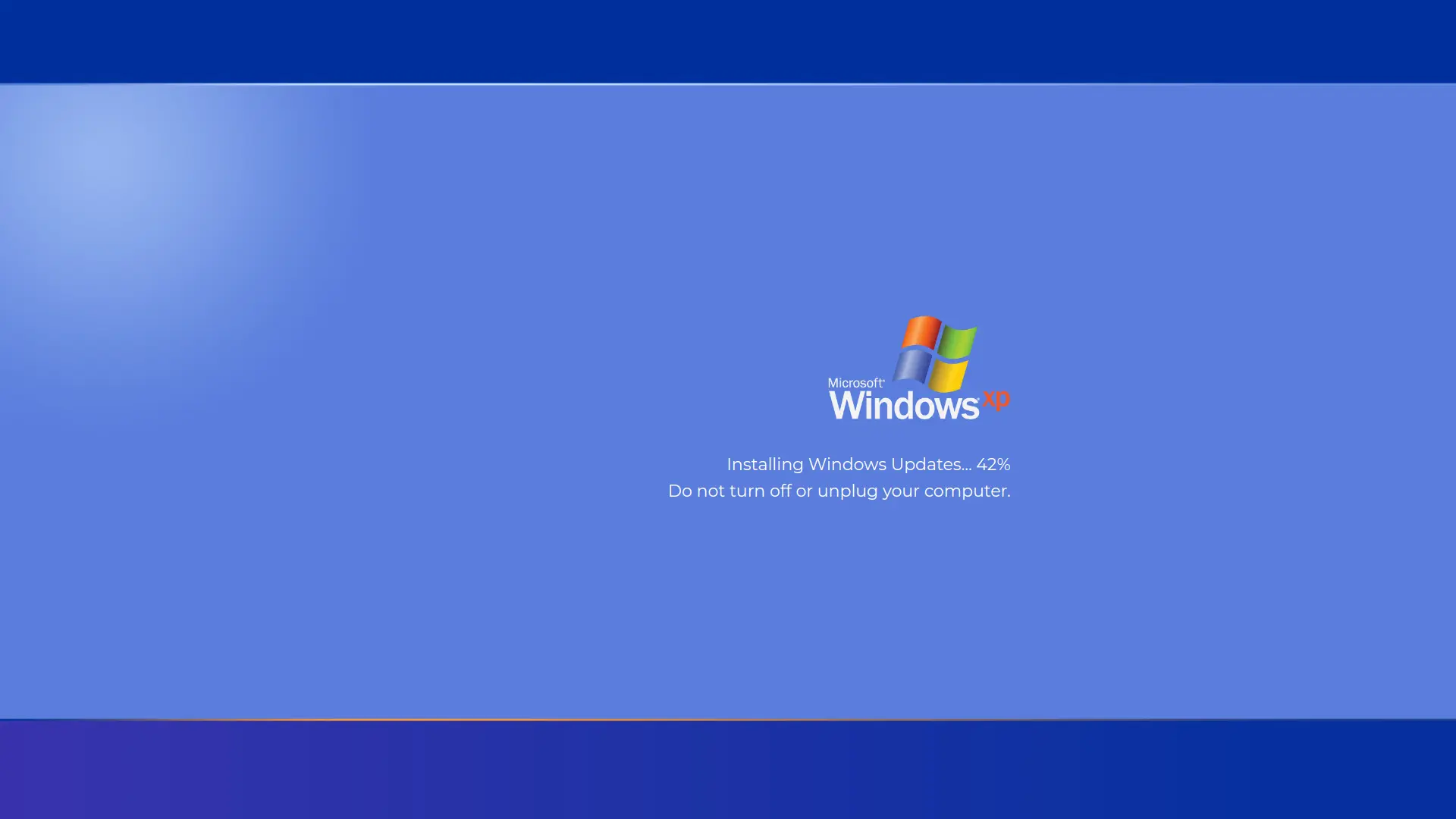
- The retro machine in the corner deserves the fake Windows XP update.
- The designer with the MacBook gets the fake macOS update.
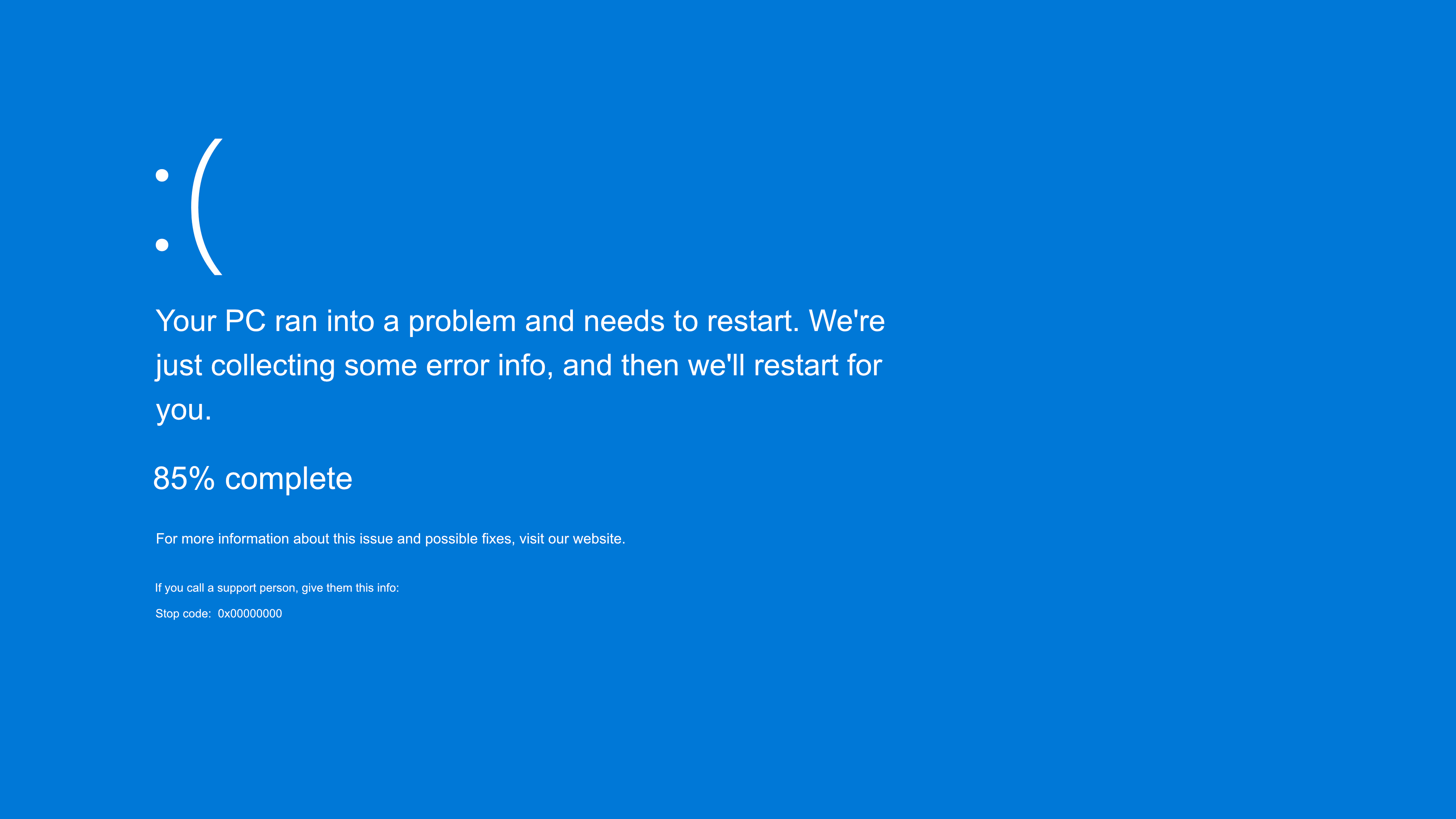
- And when an update is too gentle, there is always the fake Blue Screen of Death.
Frequently Asked Questions
Is the fake Windows 11 update safe?
Yes. It is a browser animation that installs nothing and cannot touch the system. Esc ends it instantly with nothing left behind.
What is the difference between the Windows 11 and Windows 10 update screens?
Windows 10 shows its update progress on a blue background, while Windows 11 uses a black background with updated typography. Matching the right screen to the victim's actual Windows version is what keeps the prank believable.
Can I change the duration and starting percentage?
Yes. The update time setting controls how many minutes the simulation runs, and the start time setting picks the percentage it begins from. Mid range start values like 23% or 41% look most natural.
How long do real Windows 11 updates take?
Routine monthly updates usually finish in roughly 5 to 15 minutes on the SSD hardware Windows 11 runs on, while annual feature updates can take 20 to 40 minutes or more. Setting the simulation inside those ranges is what makes it convincing.
How do I exit the fake update?
Press Esc, or F11 to leave fullscreen. The computer is untouched.
Is it free?
Completely free, with no account, download or watermark.
Related screens: Fake Windows 10 update · Fake Windows XP update · Fake macOS update