











Windows 10 Fake Update
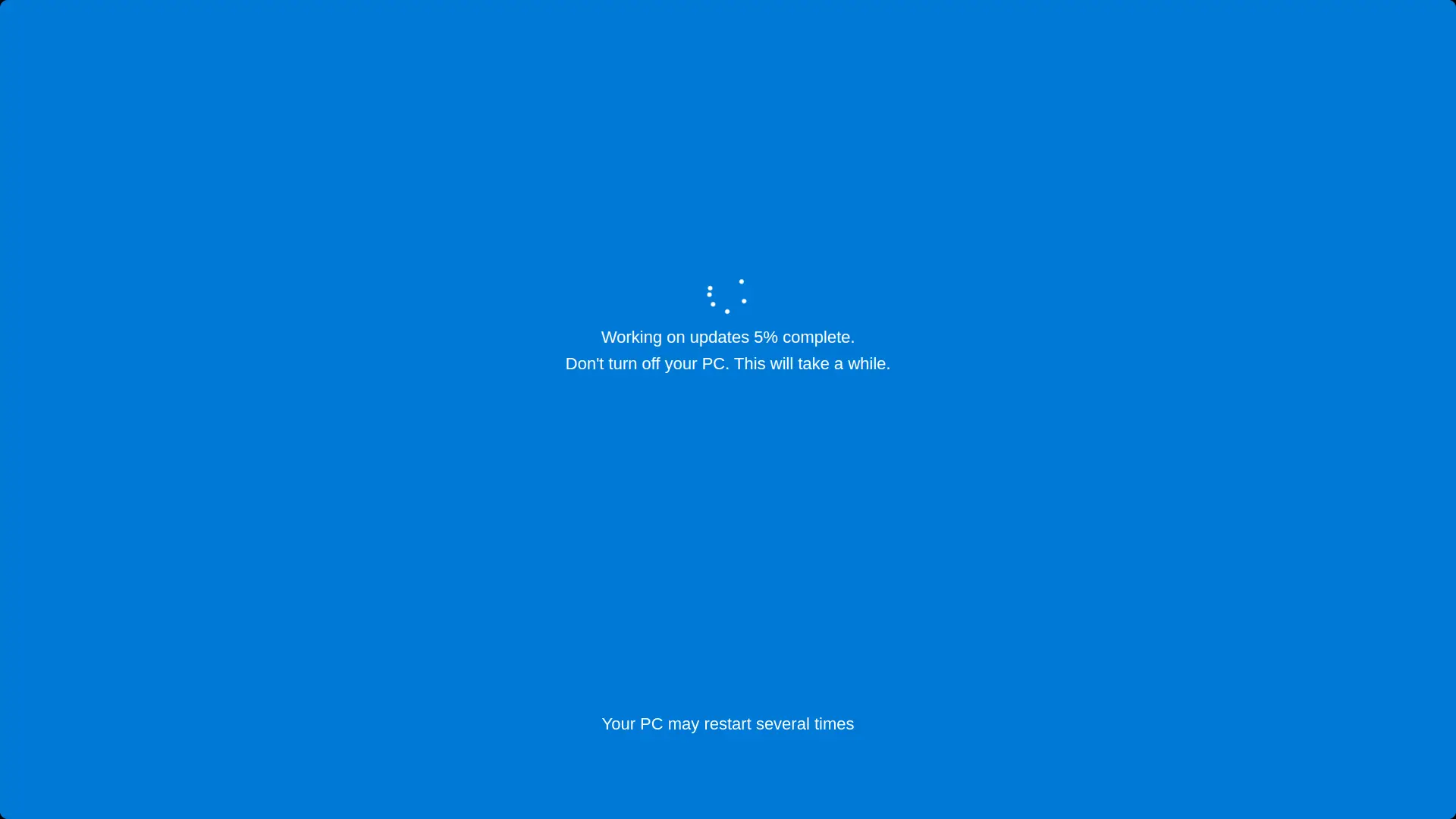
Don't turn off your PC. This will take a while.
.webp "macOS")
Screensaver Screens

Prank Screens


Color Screens
Wallpaper Screens




Video Screens




This is a free Windows 10 update simulation that runs in your browser and looks exactly like the real thing: the blue screen, the spinning dots, the slowly climbing percentage and the famous warning, "Working on updates. Don't turn off your PC." Press F11 for fullscreen and the prank is live. Nothing installs, nothing changes on the computer, and Esc ends it instantly.
What makes this version different: you control the show. Set the update time to decide how many minutes the fake update runs, and set the start time to choose what percentage it begins from. A fake update that starts at 37% and crawls for 25 minutes is far more believable than one that starts at zero, and this page lets you tune both.
How to Start the Fake Windows 10 Update
- Set your update time. Choose how many minutes the simulated update should take from start to finish. Short for a quick laugh, long for maximum suffering.
- Set your start time. Pick the percentage the update begins at. Starting mid way, say 23% or 37%, looks like an update that has already been running for a while.
- Press F11 for fullscreen. The browser disappears and the screen becomes a perfect Windows 10 update. Move the mouse out of sight, walk away, and let the victim find it. Press Esc or F11 again to end it.
Why the Update Time and Start Time Settings Matter
Anyone can show a static fake update image. The difference between a screenshot and a convincing prank is pacing, and that is exactly what these two controls give you:
Update time: match how long real updates take
Real Windows 10 updates have famous and wildly different durations. Monthly patches finish in a few minutes on a modern SSD, while big feature updates on an older hard drive can genuinely run past an hour. That reputation is your prank's best friend. Set the update time to 20 to 45 minutes and the pace of the percentage counter matches what people have painfully experienced in real life. Set it to 3 minutes and you get a quick gag for an impatient audience. The progress speed follows your chosen duration, so the counter never jumps in cartoonish leaps.
Start time: begin in the believable middle
Nobody walks in on a real update at exactly 0%. Set the start percentage to an odd, unremarkable number like 11%, 23% or 37% and the screen tells a story: this machine has been updating for a while already, and there is plenty left to go. Starting at 0% works for watching someone's hope die slowly. Starting at 97% is its own special form of cruelty, because Windows is famous for hanging at the high numbers.
How to Make the Prank Truly Convincing
The screen does the heavy lifting, but five small touches separate a good prank from a perfect one:
- Hide the cursor. Move the mouse to a corner of the screen after going fullscreen. A visible arrow on an update screen is the number one giveaway.
- Disable sleep first. If the monitor sleeps mid prank, the illusion dies. Set the power settings to keep the display on, or just know your victim returns soon.
- Auto hide the taskbar beforehand if the machine shows it over fullscreen browsers in your setup. On most systems F11 hides everything, but check once before the real performance.
- Pick your percentage with care, as covered above. Real updates also pause on one number for long stretches, and this simulation reproduces that stalling behavior rather than climbing smoothly.
- Know your audience's hardware. Telling an SSD owner their machine needs an hour long update raises eyebrows. For them, a 10 to 15 minute setting is the sweet spot.
What People Use the Fake Update Screen For
The honest list, collected from how people actually use update simulators:
- Office and classroom pranks. The classic. A colleague returns from coffee to find their PC "updating" at 23% with a meeting in ten minutes.
- The polite escape hatch. "Sorry, my computer is updating" remains one of the few universally accepted reasons to be unavailable. We are not your lawyers, but we understand.
- April Fools and party entertainment. Run it on the living room TV through a browser and watch someone try to figure out why the television is installing Windows.
- Film, video and streaming props. Creators use the simulation as a realistic background screen in skits and videos without waiting for a real update to film.
- Demonstrations and teaching. IT trainers show what an update screen looks like, on demand, without touching a real system.
Is the Fake Windows 10 Update Safe?
Yes, completely safe. This page is a browser animation and nothing more. It does not download anything, does not install anything, does not touch Windows Update, and cannot restart or modify the computer in any way. It runs the same on a Mac, a Chromebook or a phone, which is also the proof of the trick: real Windows updates cannot run inside a browser tab. The moment you press Esc, it is gone without a trace, no cleanup needed.
One sentence of common sense from us: keep it friendly. A prank on a colleague's lunch break is funny. Making someone miss a real deadline, or running it on machines you are not allowed to touch, is not. The best pranks end with both people laughing.
How Realistic Is This Windows 10 Update Simulation?
We matched the details people subconsciously check:
- The exact wording. "Working on updates X% complete. Don't turn off your PC. This will take a while." followed by the restart warning, the same phrasing Windows 10 shows.
- The spinning dots. The circular dot animation above the text, looping the way the real one does.
- The stalls. Real update percentages do not climb smoothly. They sit on a number, jump a little, and sit again. The simulation reproduces that rhythm across whatever duration you set.
- The restart stage. Real feature updates restart and continue. The simulation includes the restart sequence, so the illusion survives longer than a single progress bar.
Combined with your custom update time and start percentage, the result is an emulated Windows 10 update process that holds up to a long, suspicious stare.
More Fake Screens for Your Collection
Different victim, different decade, different operating system:
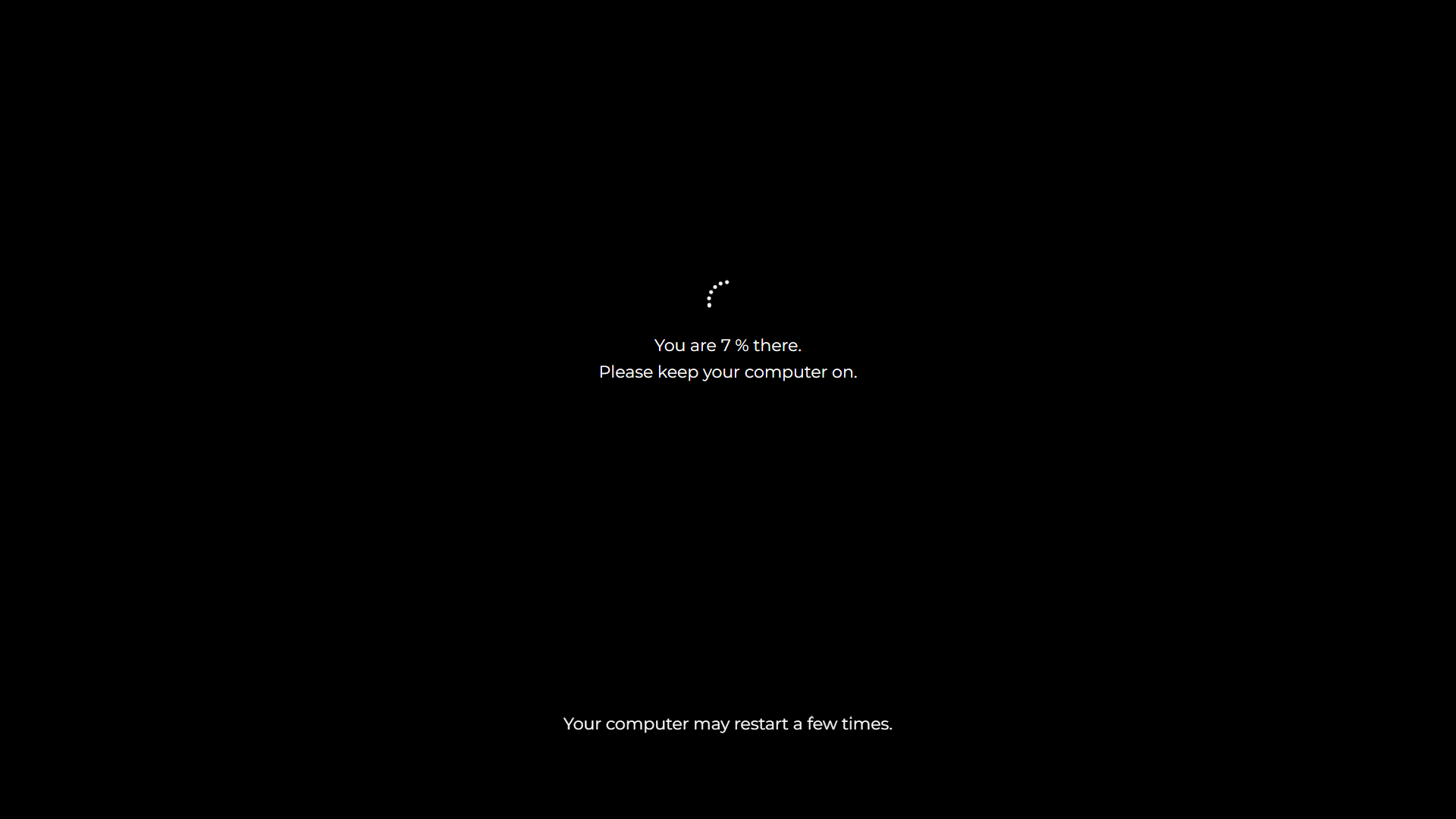
- The modern machine next door deserves the fake Windows 11 update screen.
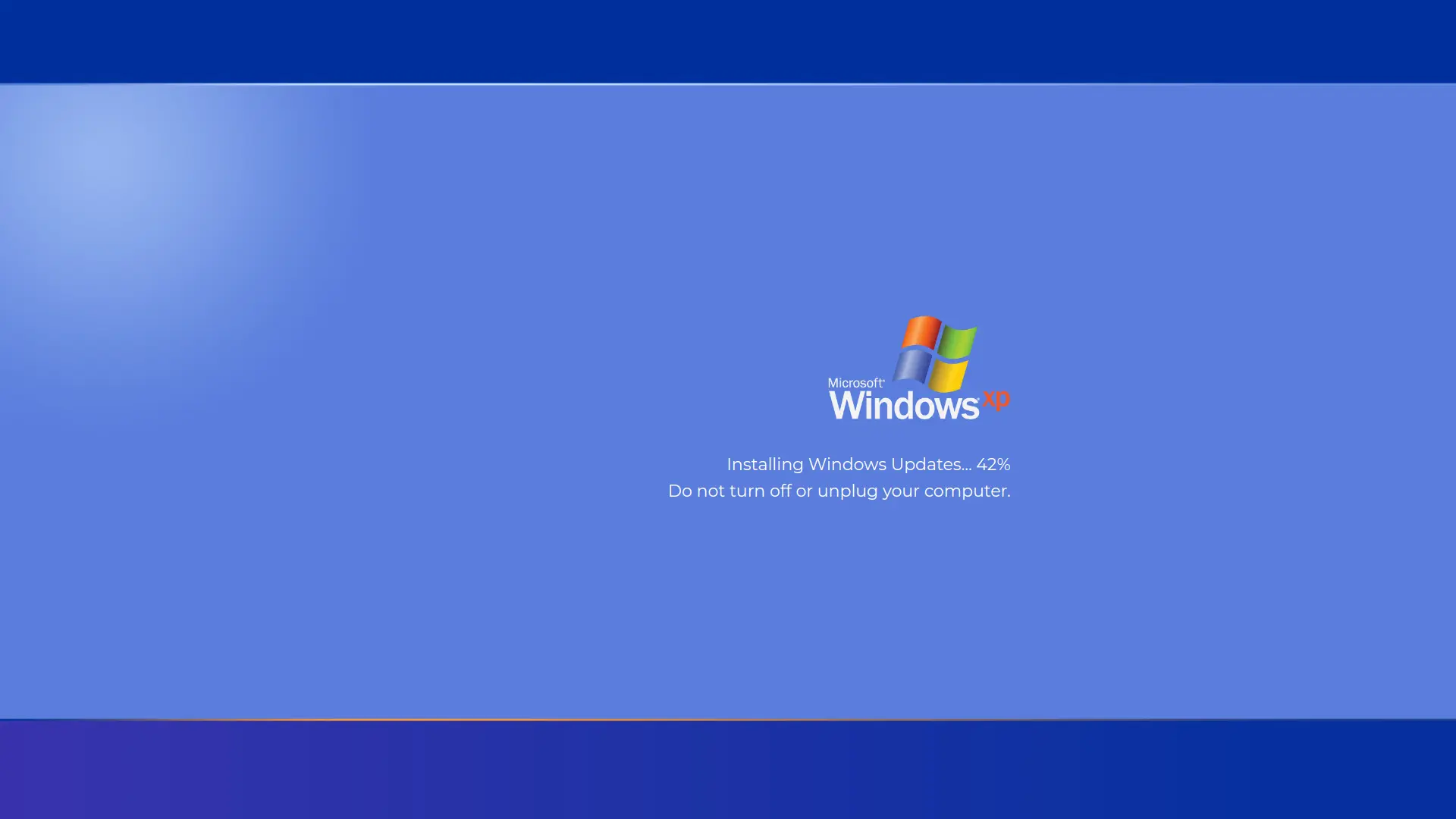
- For retro hardware or retro colleagues, the fake Windows XP update screen.
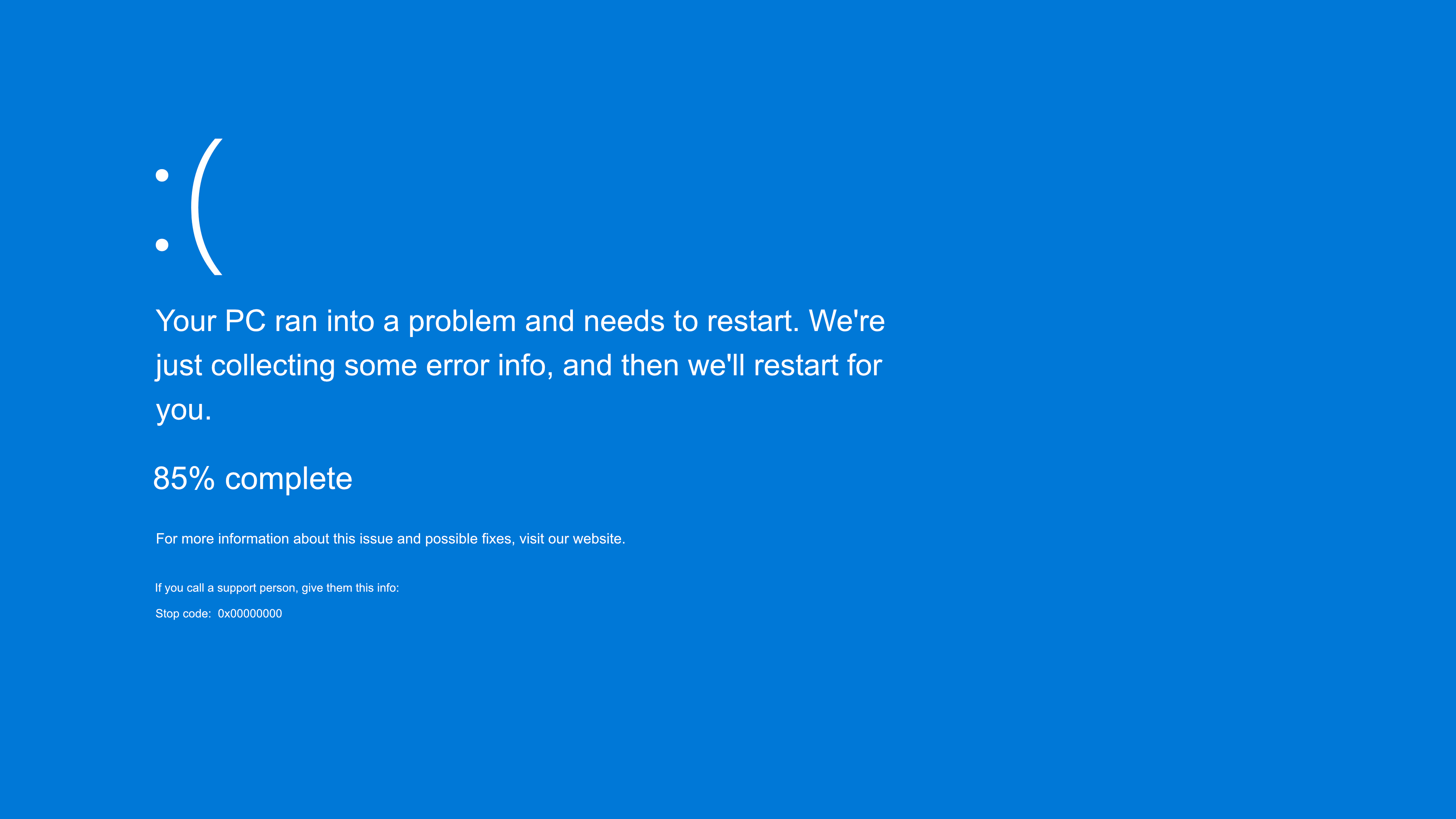
- When an update is not cruel enough, the fake Blue Screen of Death suggests something has gone properly wrong.
- And for cinematic nonsense, the hacker typer screen lets anyone look like a movie hacker.
Frequently Asked Questions
Is this fake Windows 10 update safe to use?
Yes, completely. It is a browser animation that installs nothing, changes nothing and cannot affect Windows in any way. Pressing Esc ends it instantly with nothing left behind.
Can I change how long the fake update takes?
Yes, that is the update time setting. Choose the number of minutes the simulation should run, from a quick gag to a painfully long crawl, and the percentage counter paces itself to match your chosen duration.
Can I make it start at a specific percentage?
Yes, that is the start time setting. Begin at any percentage you like. Mid range numbers like 23% or 37% look like an update already in progress, and 97% recreates the famous final stretch where Windows seems frozen forever.
How do I exit the fake update screen?
Press Esc, or press F11 to leave fullscreen. The page closes like any browser tab and the computer is untouched.
Will this work on a Mac, Chromebook or phone?
Yes. It is a web page, so it runs in any modern browser on any device. That is also part of the joke: you can make a television or a MacBook appear to install Windows 10.
How long do real Windows 10 updates take?
Monthly quality updates usually finish within minutes on an SSD. Major feature updates can take 30 to 90 minutes on older hardware with mechanical drives. Setting the simulation to 20 to 45 minutes lands in the range most people have personally suffered through, which is what makes it believable.
Can the fake update actually restart or harm the computer?
No. A web page has no permission to restart a computer, touch system files or interact with Windows Update. The restart shown in the simulation is part of the animation.
Is this fake update tool free?
Completely free. No account, no download and no watermark, and it works fullscreen on as many screens as you like.
Related screens: Prank a modern PC with the fake Windows 11 update · Go retro with the fake Windows XP update · Escalate with the fake Blue Screen of Death